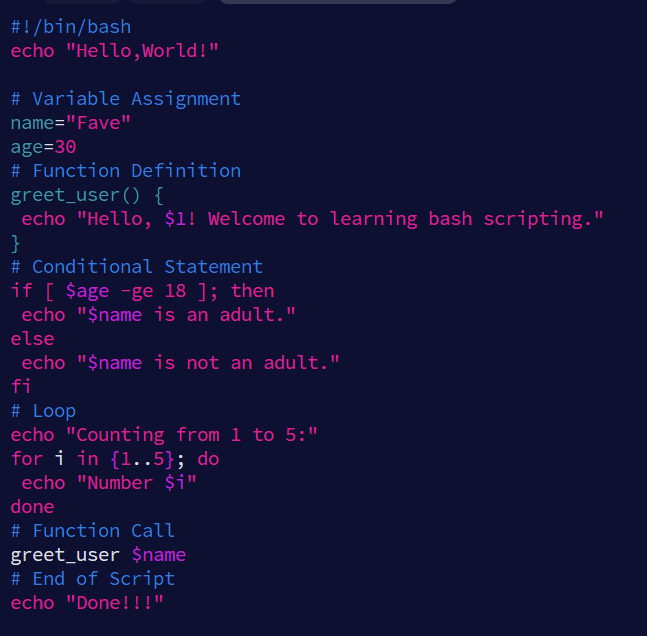

Command line atau terminal merupakan alat paling powerful yang dimiliki developer. Menguasai command line Linux tidak hanya meningkatkan produktivitas tetapi juga memberikan kontrol penuh atas sistem. Artikel ini akan membahas 20 command line Linux yang paling sering digunakan developer website dalam kesehariannya.
1. ls – List Directory Contents
Command paling dasar namun paling sering digunakan. ls menampilkan isi direktori.
# Tampilkan file dalam direktori saat ini
ls
Tampilkan detail lengkap dengan permission, ukuran, tanggal
ls -la
Tampilkan ukuran file dalam format human-readable
ls -lh
Urutkan berdasarkan waktu modifikasi terbaru
ls -lt
Tampilkan hanya direktori
ls -d */
Tips: Gunakan ls -lah untuk melihat semua file termasuk hidden files dengan ukuran yang mudah dibaca.
2. cd – Change Directory
Berpindah antar direktori dengan cd.
# Masuk ke direktori home
cd ~
Naik satu level ke direktori parent
cd ..
Kembali ke direktori sebelumnya
cd -
Masuk ke direktori dengan path lengkap
cd /var/www/html
Masuk ke direktori dengan nama panjang menggunakan tab completion
cd pro<TAB>
Tips: Gunakan cd - untuk toggle antara dua direktori terakhir. Sangat berguna saat bekerja dengan struktur project yang kompleks.
3. pwd – Print Working Directory
Menampilkan path lengkap direktori saat ini.
pwd
# Output: /home/user/projects/website
Gunakan saat Anda lupa posisi direktori saat ini dalam struktur filesystem.
4. grep – Global Regular Expression Print
Mencari teks dalam file. Sangat berguna untuk debugging dan analisis log.
# Cari kata "error" dalam file log
grep "error" /var/log/apache2/error.log
Cari case-insensitive
grep -i "error" file.txt
Cari dengan regex dan tampilkan nomor baris
grep -n "failed.*login" auth.log
Cari di semua file dalam direktori
grep -r "TODO" /path/to/project/
Cari dan tampilkan 3 baris context sebelum dan sesudah
grep -C 3 "exception" app.log
Cari yang TIDAK mengandung pattern (inverted)
grep -v "DEBUG" log.txt
Tips Developer: Gunakan grep -r "functionName" . untuk mencari definisi fungsi dalam codebase.
5. find – Search for Files
Mencari file berdasarkan berbagai kriteria.
# Cari file berdasarkan nama
find . -name "*.js"
Cari file yang dimodifikasi dalam 24 jam terakhir
find . -mtime -1
Cari file kosong
find . -type f -empty
Cari file dengan ukuran tertentu (>100MB)
find . -size +100M
Cari dan hapus file .log yang lebih dari 30 hari
find . -name "*.log" -mtime +30 -delete
Cari file dan jalankan command pada setiap file
find . -name "*.php" -exec grep -l "mysql_query" {} \;
Tips: Kombinasikan dengan xargs untuk pemrosesan batch yang efisien.
6. cat – Concatenate and Display
Menampilkan isi file dan menggabungkan file.
# Tampilkan isi file
cat config.ini
Gabungkan beberapa file
cat file1.txt file2.txt > combined.txt
Tampilkan dengan nomor baris
cat -n script.js
Tambahkan isi file ke file lain (append)
cat additional.sql >> database.sql
Tips: Untuk file besar, gunakan less atau more daripada cat.
7. less – View File Contents Interactively
Viewer file yang lebih baik dari cat untuk file besar.
less /var/log/syslog
Navigation dalam less:
Space atau f - scroll down satu halaman
b - scroll up satu halaman
/pattern - cari pattern ke bawah
?pattern - cari pattern ke atas
n - next match
N - previous match
q - quit
Tips: Gunakan less +F filename untuk mode follow (seperti tail -f).
8. tail – Output Last Part of Files
Melihat akhir file, sangat berguna untuk log files.
# Tampilkan 10 baris terakhir
tail error.log
Tampilkan 50 baris terakhir
tail -n 50 access.log
Pantau log secara real-time (follow mode)
tail -f /var/log/nginx/access.log
Pantau multiple files
tail -f /var/log/apache2/*.log
Tampilkan dari baris tertentu (misal dari baris 1000)
tail -n +1000 largefile.txt
Tips Developer: tail -f adalah teman terbaik untuk monitoring aplikasi web secara real-time.
9. head – Output First Part of Files
Kebalikan dari tail, melihat bagian awal file.
# Tampilkan 10 baris pertama
head config.json
Tampilkan 5 baris pertama
head -n 5 users.csv
Tampilkan file tanpa 20 baris terakhir (berguna untuk menghapus footer)
head -n -20 file.txt
10. chmod – Change File Permissions
Mengubah permission file dan direktori.
# Berikan permission execute pada script
chmod +x deploy.sh
Set permission 755 (rwxr-xr-x)
chmod 755 directory/
Set permission 644 (rw-r--r--) untuk file
chmod 644 file.txt
Recursive permission change
chmod -R 755 /var/www/html/
Berikan write permission untuk group
chmod g+w file.txt
Hapus read permission untuk others
chmod o-r sensitive.conf
Tips: Gunakan chmod +x untuk membuat script dapat dieksekusi.
11. chown – Change File Owner
Mengubah owner dan group file.
# Ubah owner file
sudo chown user:group file.txt
Ubah hanya owner
sudo chown www-data file.txt
Recursive change
sudo chown -R www-data:www-data /var/www/
Copy ownership dari file lain (reference)
sudo chown --reference=file1.txt file2.txt
Tips Web Server: Pastikan web server user (www-data/nginx) punya permission yang tepat.
12. ps – Process Status
Melihat proses yang sedang berjalan.
# Tampilkan semua proses
ps aux
Cari proses spesifik
ps aux | grep apache
Tampilkan tree proses
ps auxf
Tampilkan proses milik user tertentu
ps -u username
Tampilkan PID, CPU, Memory usage
ps -eo pid,ppid,cmd,%cpu,%mem --sort=-%cpu | head
Tips: Gunakan ps aux | grep <process> untuk menemukan PID aplikasi.
13. kill – Terminate Processes
Menghentikan proses berdasarkan PID.
# Kill proses dengan PID 1234
kill 1234
Force kill (SIGKILL)
kill -9 1234
Kill semua proses dengan nama
killall php-fpm
Kirim signal SIGTERM (graceful shutdown)
kill -15 1234
Kill proses yang menggunakan port tertentu
kill $(lsof -t -i:3000)
Tips: Selalu coba kill -15 (SIGTERM) dulu sebelum kill -9 (SIGKILL).
14. df – Disk Free Space
Melihat penggunaan disk space.
# Tampilkan semua filesystem
df -h
Tampilkan hanya tipe tertentu
df -ht ext4
Tampilkan total
df -h --total
Tampilkan inodes usage
df -i
Tips: Gunakan df -h secara berkala untuk monitoring disk space.
15. du – Disk Usage
Melihat ukuran direktori dan file.
# Ukuran direktori saat ini
du -sh .
Ukuran semua subdirectory
du -sh */
10 direktori terbesar dalam current directory
du -sh */ | sort -rh | head -10
Total ukuran dengan exclude pattern
du -sh --exclude='*.log' /var/
Detail ukuran setiap file
du -ah /path/to/directory/
Tips Developer: du -sh */ | sort -rh | head -10 untuk menemukan direktori paling besar.
16. curl – Transfer Data from/to Server
Tool untuk HTTP requests dan download.
# Download file
curl -O https://example.com/file.zip
Download dengan nama custom
curl -o myfile.zip
https://example.com/file.zip
Follow redirects
curl -L
https://bit.ly/shortlink
POST request dengan data
curl -X POST -d "name=value"
https://api.example.com/endpoint
POST JSON
curl -X POST -H "Content-Type: application/json" -d '{"key":"value"}' https://api.example.com/
Simpan headers response
curl -I
https://example.com
Download dengan resume support
curl -C - -O
https://largefile.com/file.iso
Tips Developer: Gunakan curl -I untuk cek HTTP status dan headers server.
17. wget – Non-interactive Network Downloader
Alternatif curl untuk download.
# Download file
wget https://example.com/file.zip
Download dengan nama custom
wget -O customname.zip
https://example.com/file.zip
Download dalam background
wget -b
https://largefile.com/file.iso
Resume download yang terputus
wget -c
https://example.com/largefile.zip
Download seluruh website (recursive)
wget --mirror --convert-links --adjust-extension --page-requisites --no-parent https://example.com/
Download dengan limit bandwidth (200KB/s)
wget --limit-rate=200k
https://example.com/file.zip
18. tar – Archive and Compression
Mengarsip dan mengompres file.
# Buat tar archive
tar -cvf archive.tar directory/
Extract tar archive
tar -xvf archive.tar
Buat tar.gz (compress)
tar -czvf archive.tar.gz directory/
Extract tar.gz
tar -xzvf archive.tar.gz
Buat tar.bz2
tar -cjvf archive.tar.bz2 directory/
List isi archive tanpa extract
tar -tvf archive.tar.gz
Extract file spesifik
tar -xzvf archive.tar.gz path/to/file.txt
Tips Developer: Gunakan tar -czvf untuk backup project sebelum deploy.
19. ssh – Secure Shell
Remote login ke server.
# Login ke remote server
ssh user@hostname
Login dengan port custom
ssh -p 2222 user@hostname
Login dengan private key
ssh -i ~/.ssh/private_key user@hostname
Forward port local ke remote
ssh -L 8080:localhost:80 user@hostname
Execute command remote dan exit
ssh user@hostname "ls -la /var/www/"
Copy file via SSH (SCP alternative via SSH)
ssh user@hostname "cat remote-file.txt" > local-file.txt
Tips: Setup SSH key pair untuk login tanpa password yang lebih aman.
20. git – Version Control
Version control system yang wajib dikuasai developer.
# Initialize repository
git init
Clone repository
git clone
https://github.com/user/repo.git
Check status
git status
Add files to staging
git add filename.js
git add .  # Add all
Commit changes
git commit -m "Descriptive commit message"
Push to remote
git push origin main
Pull latest changes
git pull origin main
View commit history
git log --oneline --graph --all
Create and switch branch
git checkout -b feature-branch
Stash changes sementara
git stash
Apply stashed changes
git stash pop
Reset file ke status terakhir
git checkout -- filename.txt
Tips Git: Gunakan git log --oneline --graph --all --decorate untuk visualisasi branch yang jelas.
Bonus: Command Combinations Powerful
Beberapa kombinasi command yang sangat berguna:
# Cari file besar yang menghabiskan space
du -ah / | sort -rh | head -20
Kill semua proses node.js
ps aux | grep node | grep -v grep | awk '{print $2}' | xargs kill -9
Cari dan replace text dalam multiple files
find . -type f -name "*.js" -exec sed -i 's/oldText/newText/g' {} +
Monitor network connections real-time
watch -n 1 "netstat -tuln"
Backup database dan compress
mysqldump -u root -p database
name | gzip > backup$(date +%Y%m%d).sql.gz
Generate random password
cat /dev/urandom | tr -dc 'a-zA-Z0-9' | fold -w 16 | head -n 1
Kesimpulan
Menguasai 20 command line Linux ini akan sangat meningkatkan produktivitas Anda sebagai developer. Mulailah dengan command-command dasar seperti ls, cd, grep, dan find, kemudian pelajari command yang lebih advanced seperti awk, sed, dan kombinasi pipeline.
Command line memberikan kecepatan dan fleksibilitas yang tidak bisa ditandingi oleh GUI. Dengan latihan konsisten, Anda akan dapat menyelesaikan task development dalam hitungan detik yang mungkin membutuhkan menit jika menggunakan GUI.
Jangan lupa untuk selalu membaca manual dengan man <command> atau <command> --help untuk mengeksplorasi opsi-opsi tambahan yang tersedia.